
USB Digital Microscope Z1
Driver for Cainda USB Digital Microscope Z1
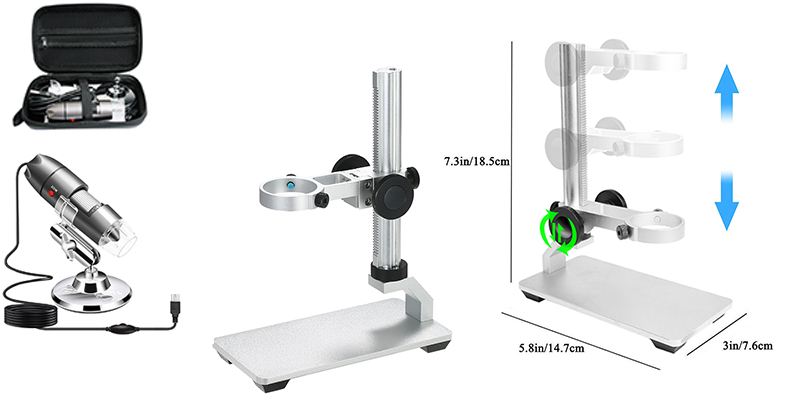
If you want to get a metal stand for your X10 microscope, please click cainda-gift@outlook.com to send an email to us.Attach the title "I want a metal stand for X10 microscope" and your Amazon order# in the email.
(Every account can only get one)
(This promotion is only valid for Amazon orders.)
Please email cainda-seller@outlook.com to save your time if you have any trouble with your order or the microscope.
Quick Access For Driver and Operation
Attention:
1. There is a transparent protective cover in front of the camera lens. Please remove it before use. Or you would not be able to get the clear image.
2. The microscope has the corresponding focal distance for difference magnifications. You need adjust the distance between microscope and object to change the magnification, and then adjust the focus roller to get a clear image.
3. If your microscope doesn't work on your devices normally or you have any trouble with it, please contact us via cainda-seller@outlook.com
Use in Windows
Cainda USB Microscope will automatically install default webcam (UVC) drivers when plugged into a host device. So it's compatible with any webcam app, you can choose one or more softwares below to install on your PC according to your need.
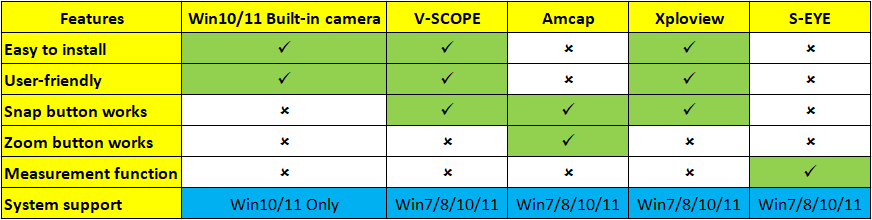
Recommend Softwares and the Features:
Quick Access For Driver and Operation
Attention:
1. There is a transparent protective cover in front of the camera lens. Please remove it before use. Or you would not be able to get the clear image.
2. The microscope has the corresponding focal distance for difference magnifications. You need adjust the distance between microscope and object to change the magnification, and then adjust the focus roller to get a clear image.
3. If your microscope doesn't work on your devices normally or you have any trouble with it, please contact us via cainda-seller@outlook.com
Use in Windows
Cainda USB Microscope will automatically install default webcam (UVC) drivers when plugged into a host device. So it's compatible with any webcam app, you can choose one or more softwares below to install on your PC according to your need.
Recommend Softwares and the Features:
1) Win10/11 Built-in Software
If you are a Win10/11 user, you can open its built-in camera app to use this microscope directly.
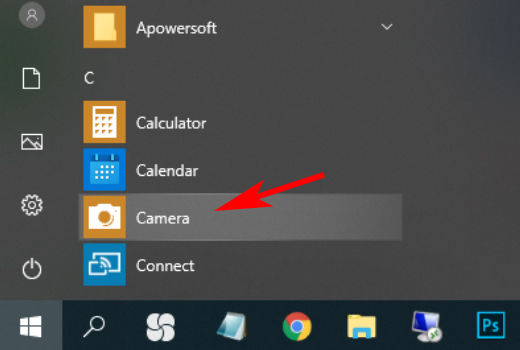
You can click the "Windows" logo on the left to find the "Camera" app.
Connect the microscope to your computer via the USB cable and then you can see the image.
If you are a Win10/11 user, you can open its built-in camera app to use this microscope directly.
You can click the "Windows" logo on the left to find the "Camera" app.
Connect the microscope to your computer via the USB cable and then you can see the image.
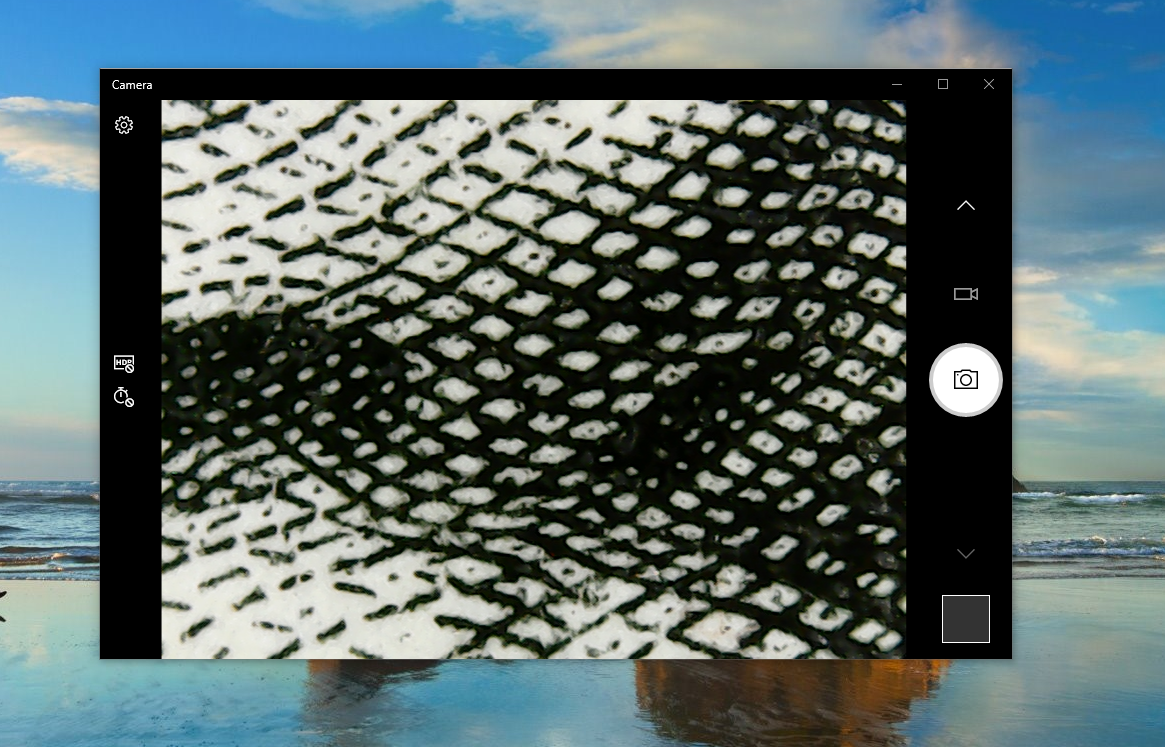
Note: You can't use the SNAP and ZOOM buttons in this app.
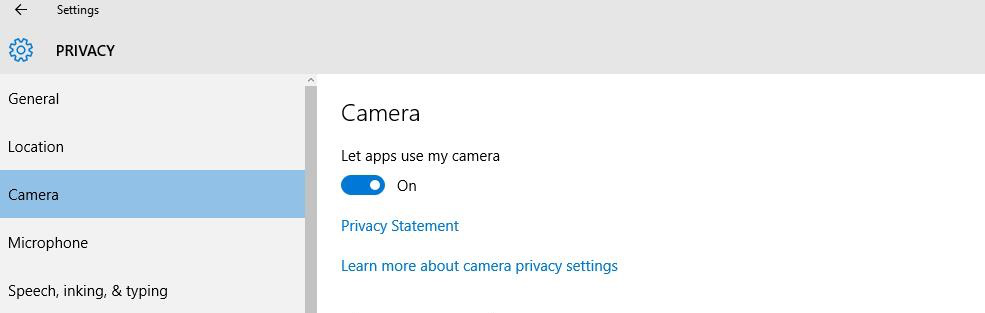
Please set up the privacy setting to let apps access the camera if can’t get the image on software.
Please set up the privacy setting to let apps access the camera if can’t get the image on software.
2) V-SCOPE
Windows users can choose to use the "V-SCOPE" app.
Step 1: Download the "V-SCOPE"
1. Please download the V-SCOPE software via the link below to install:
Download Path: V-SCOPE-v1.1.3 | Windows 7 8 10 11
Step 3: Use your microscope
Windows users can choose to use the "V-SCOPE" app.
Step 1: Download the "V-SCOPE"
1. Please download the V-SCOPE software via the link below to install:
Download Path: V-SCOPE-v1.1.3 | Windows 7 8 10 11
2. Windows 10/11 users can download and install directly from the Micro-soft Store:
Download Path: V-SCOPE.exe | Windows 10, 11
Step 3: Use your microscope
3) xploview
Windows users can choose to use the "xploview" app.
Step 1: Download the "xploview"
Please download the xploview software via the link below to install:
Download Path 1:xploview.exe(3.87MB) | Windows | 32/64 bit
Download Path 2:xploview v3.3.31.exe(9.59MB) | Windows | 32/64 bit
Step 2: Install the "xploview"
Double click the "xploview.exe" and follow the steps below:
Windows users can choose to use the "xploview" app.
Step 1: Download the "xploview"
Please download the xploview software via the link below to install:
Download Path 1:xploview.exe(3.87MB) | Windows | 32/64 bit
Download Path 2:xploview v3.3.31.exe(9.59MB) | Windows | 32/64 bit
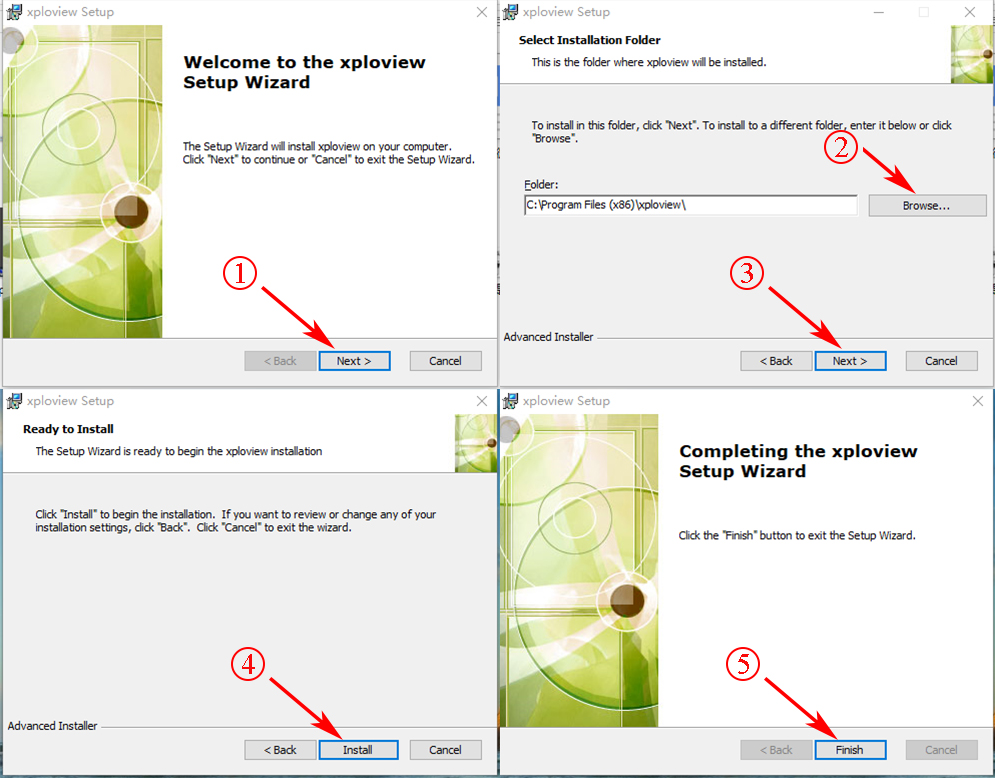
Step 2: Install the "xploview"
Double click the "xploview.exe" and follow the steps below:
Step 3: Use your microscope
Plug the USB microscope into your computer and remove the microscope lens cover.
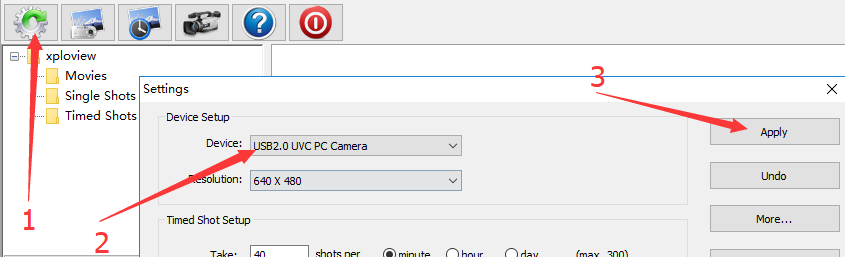
Run the "xploview" app and click “Settings” – “Device” to select “USB2.0 UVC PC Camera” on the dropdown list, finally click "Apply".
Note: ZOOM button doesn’t work on the "xploview" .
Plug the USB microscope into your computer and remove the microscope lens cover.
Run the "xploview" app and click “Settings” – “Device” to select “USB2.0 UVC PC Camera” on the dropdown list, finally click "Apply".
Note: ZOOM button doesn’t work on the "xploview" .
4) S-EYE
If you need the measurement function, you can use the "S-EYE" software.
Step 1: Download the “S-EYE”
Please click the link below to download the "S-EYE" software:
S-EYE.exe | Windows XP, Vista, 7, 8, 10 | 32 or 64 bit
Step 2: Install the “S-EYE”
If you need the measurement function, you can use the "S-EYE" software.
Step 1: Download the “S-EYE”
Please click the link below to download the "S-EYE" software:
S-EYE.exe | Windows XP, Vista, 7, 8, 10 | 32 or 64 bit
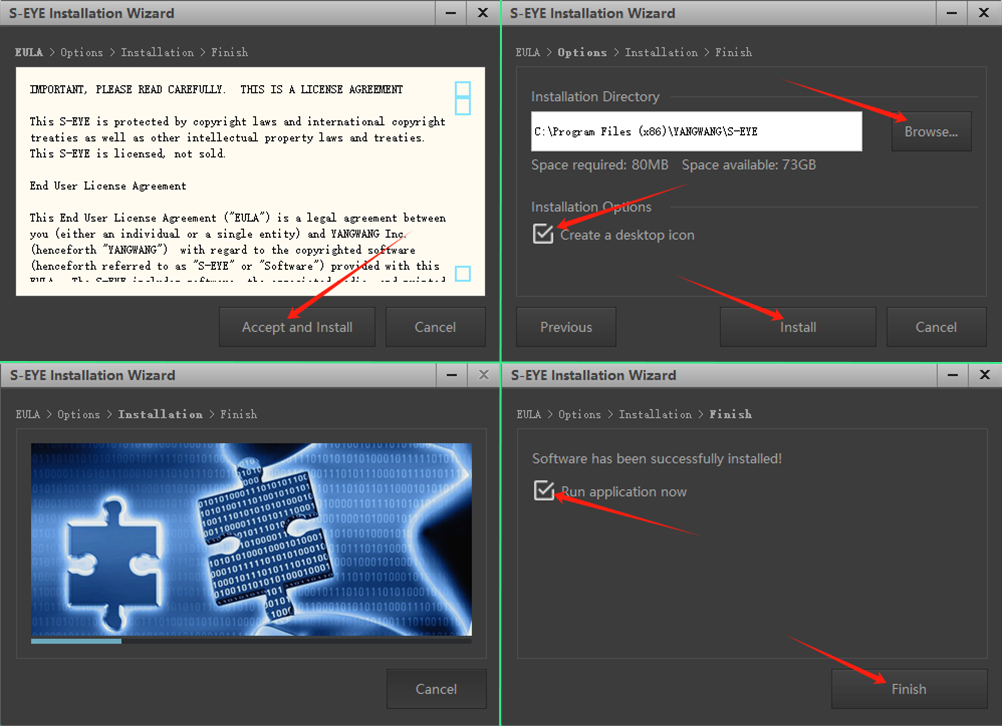
Step 2: Install the “S-EYE”
Step 3: Use your microsocpe
Open the software S-EYE.
Select the device “GL USB2.0 UVC Camera Device” if the default camera is not this microscope.
Open the software S-EYE.
Select the device “GL USB2.0 UVC Camera Device” if the default camera is not this microscope.

If you still have any trouble while using it on your PC, pleases contact us via our service email: cainda-seller@outlook.com